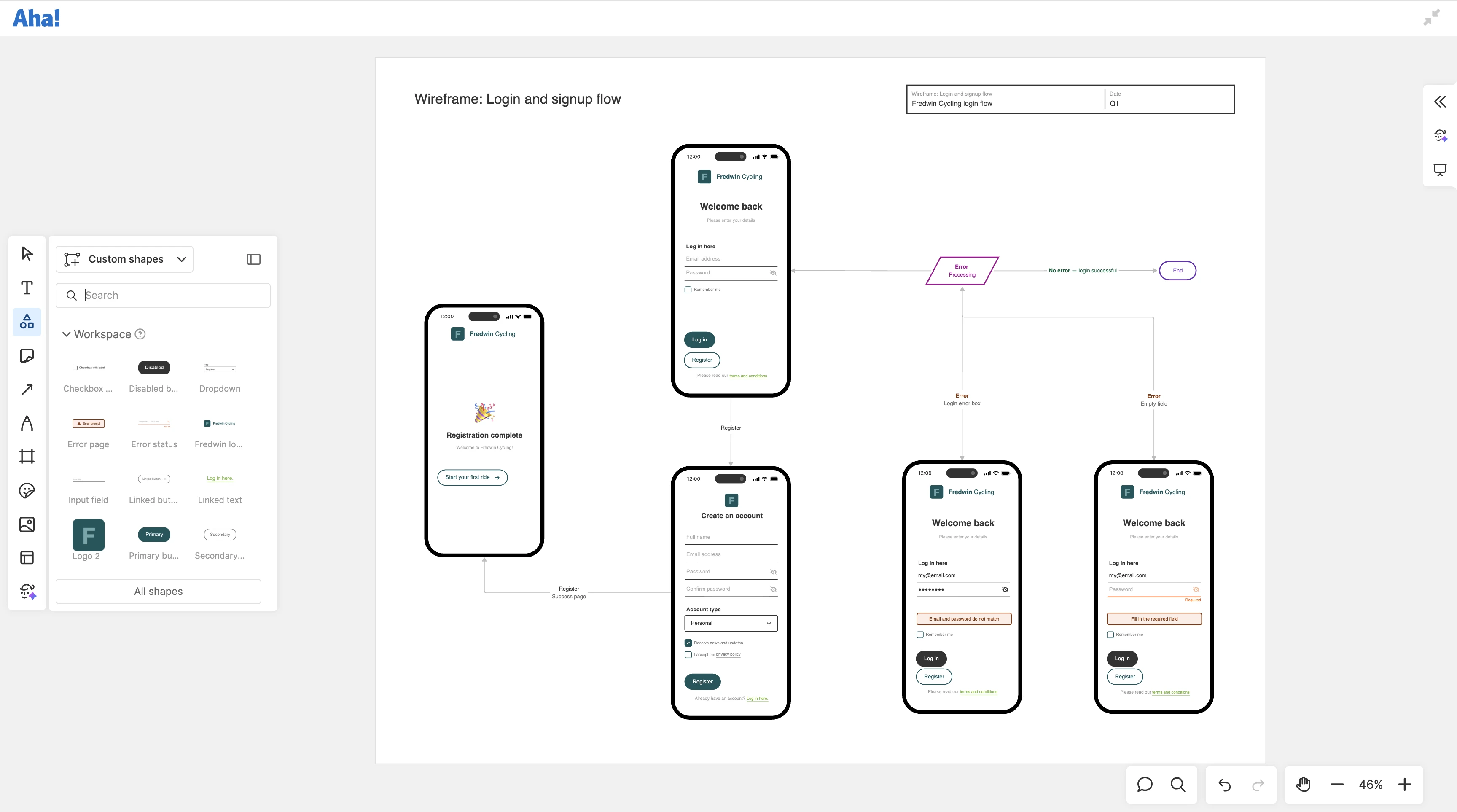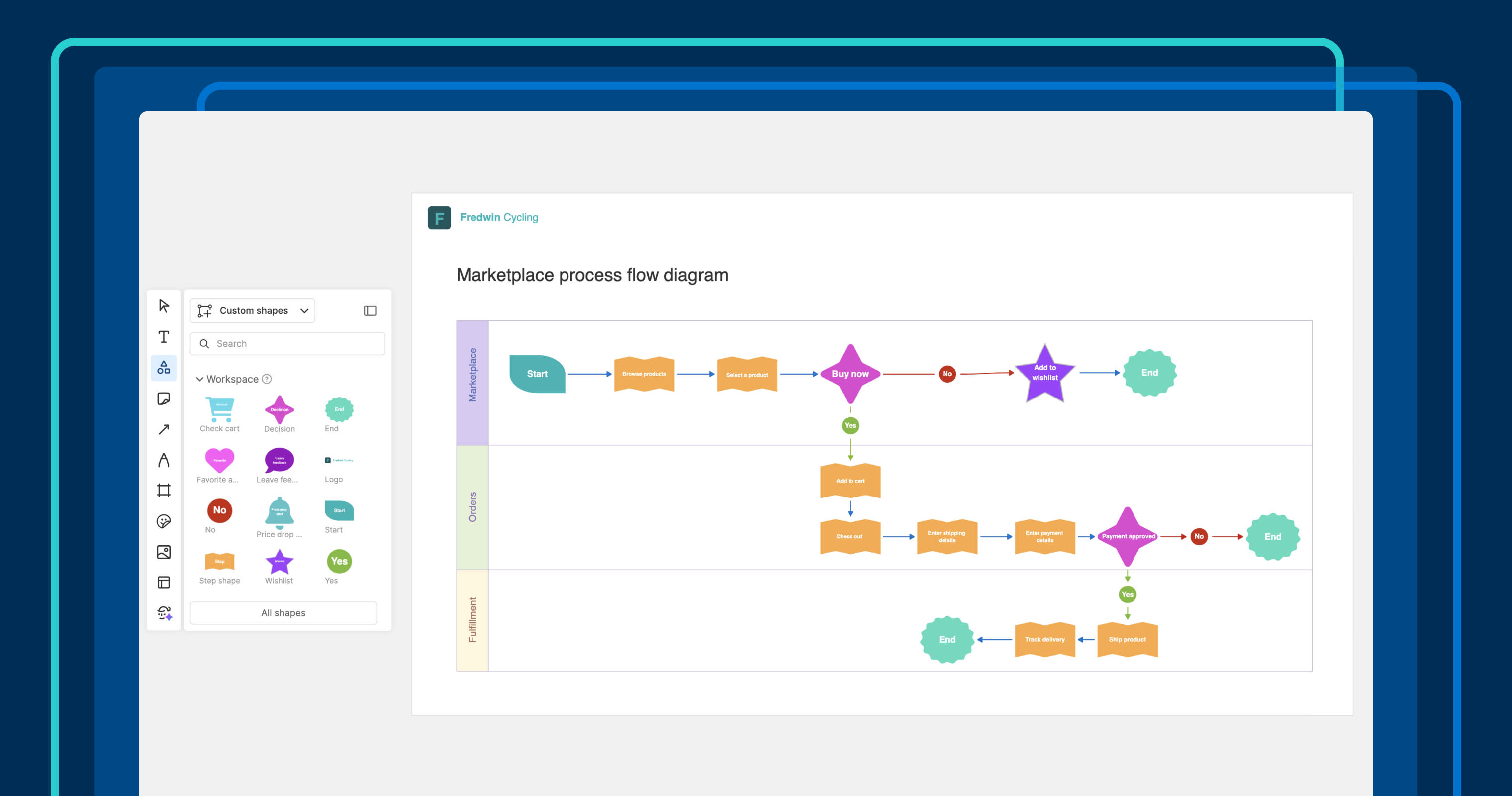
Use custom shapes to match wireframes, diagrams, and user flows to your company's design system.
Create a shared custom shapes library in Aha! Whiteboards


Early product ideation moves fast. But recreating the same wireframe or diagram components every time you whiteboard is not a great use of time. Today's update makes it easy to reuse components across the team — so you can iterate on concepts quickly while following your design system.
Create a custom shapes library in Aha! Whiteboards to keep commonly used elements (like your company logo, UI elements, and other branded shapes) readily available for the team.
Establish a shared visual language
Whiteboards help you refine product concepts and collaborate on plans. Quickly craft user flows, wireframes, and technical diagrams, choosing from an extensive library of shapes to communicate your thinking.
You could already save custom shapes and imported SVGs for reuse on a specific whiteboard. Now, you can take it a step further by establishing a custom shapes library that everyone in your workspace can access. You can also maintain a list of your own personal favorites. This keeps common elements within easy reach — resulting in more consistent visuals.
Here is what you can do:
Speed up whiteboarding: Add components as custom shapes to save time rebuilding them.
Follow your design system: Create a wireframe and diagram library to create on-brand visuals.
Keep favorites handy: Store your go-to shapes in a personal library for quick access from any whiteboard.
Collaborating on product plans is so much smoother when everyone uses the same design language.
The custom shapes library is available in Aha! Whiteboards Advanced. Upgrade or contact us to schedule a demo. Only workspace owners can add, rename, and delete workspace-level custom shapes.
See the new custom shapes library in action:
How to get started
Right-click on a shape or multiple shapes and select Save as custom shape.
Name the custom shape and choose where to save it.
This whiteboard: The shape will be available only on the current whiteboard.
Personal shapes: The shape will be available to you on every whiteboard where you have Edit access.
Workspace shapes: The shape will be available to everyone in the workspace with Edit access.
After you save the shape, it appears in the Custom shapes section of the Shapes menu.
📚 For more details, read the full support article.
Start building your custom shapes library today. Give your whiteboards a consistent design foundation — so you can stay focused on exploring new concepts instead of rebuilding the same components over and over again.
Upgrade to the Aha! Whiteboards Advanced plan
Aha! Whiteboards is the visual space for product innovation. Choose the Aha! Whiteboards Advanced plan if you need the most sophisticated capabilities — such as wireframing, confidence voting during PI planning, and whiteboard integration with Jira and Azure DevOps. Start a free trial of Aha! Whiteboards to access all the advanced features. Or contact us if you would like to add it to your Aha! Roadmaps, Aha! Ideas, or Aha! Knowledge plan.