Embed a roadmap in a PowerPoint presentation.
Present live roadmap views in Microsoft PowerPoint


You plan your work in Aha! Roadmaps with roadmaps, reports, and charts that clearly show priorities and progress. But your organization expects you to present those plans to colleagues and customers in Microsoft PowerPoint. If that sounds familiar, today’s launch is for you. And you are not alone. We have received over 120 customer votes related to adding roadmaps and reports to PowerPoint.
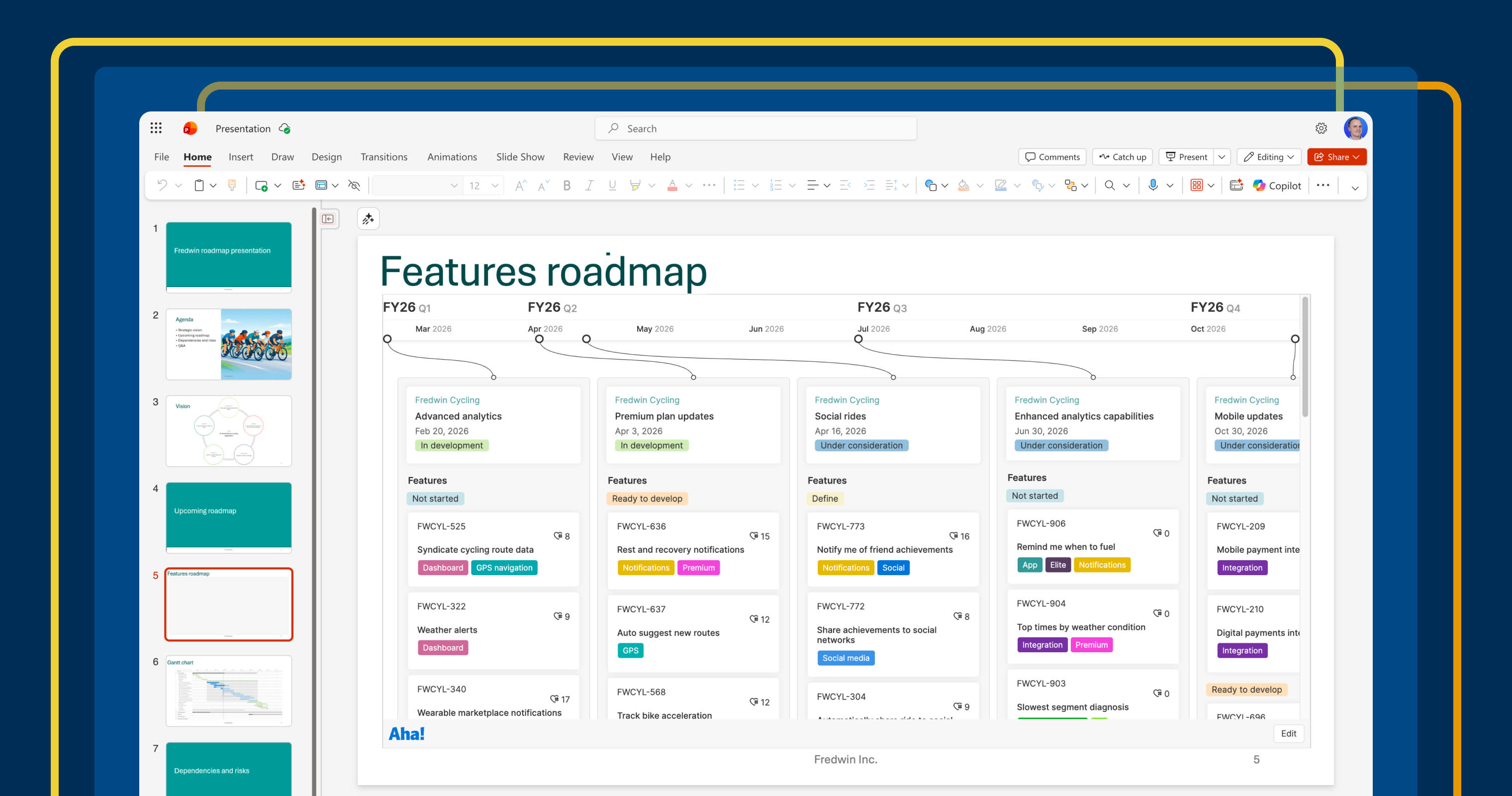
Now, you can embed live views from Aha! Roadmaps directly into PowerPoint slides — and automatically keep your presentations up to date.
Keep roadmap presentations current
You already create beautiful visuals in Aha! Roadmaps to communicate product strategy and track progress — from the high-level Now, Next, Later roadmap to the more detailed features roadmap. Of course, you can use our built-in presentation capabilities to tell your story. But many of you are required to use PowerPoint. Until now, this meant exporting static images or recreating them manually. It also meant that if those views were updated in Aha! Roadmaps, they would be out of date in your presentation. You can add live views directly to your slides with today's update.
Here is what you can do:
Embed live views: Add any roadmap, report, or chart into a PowerPoint slide.
Keep them up to date: Ensure changes made in Aha! Roadmaps automatically reflect on your slides.
Control what details are shown: Determine the level of detail offered with the option to drill into individual records.
This new integration ensures your PowerPoint presentations stay in sync as your roadmap evolves. You will spend less time maintaining decks and more time delivering on your plan.
The Aha! Roadmaps for PowerPoint add-in is available for all Aha! Roadmaps customers.
How to get started
Open your saved roadmap or report in Aha! Roadmaps.
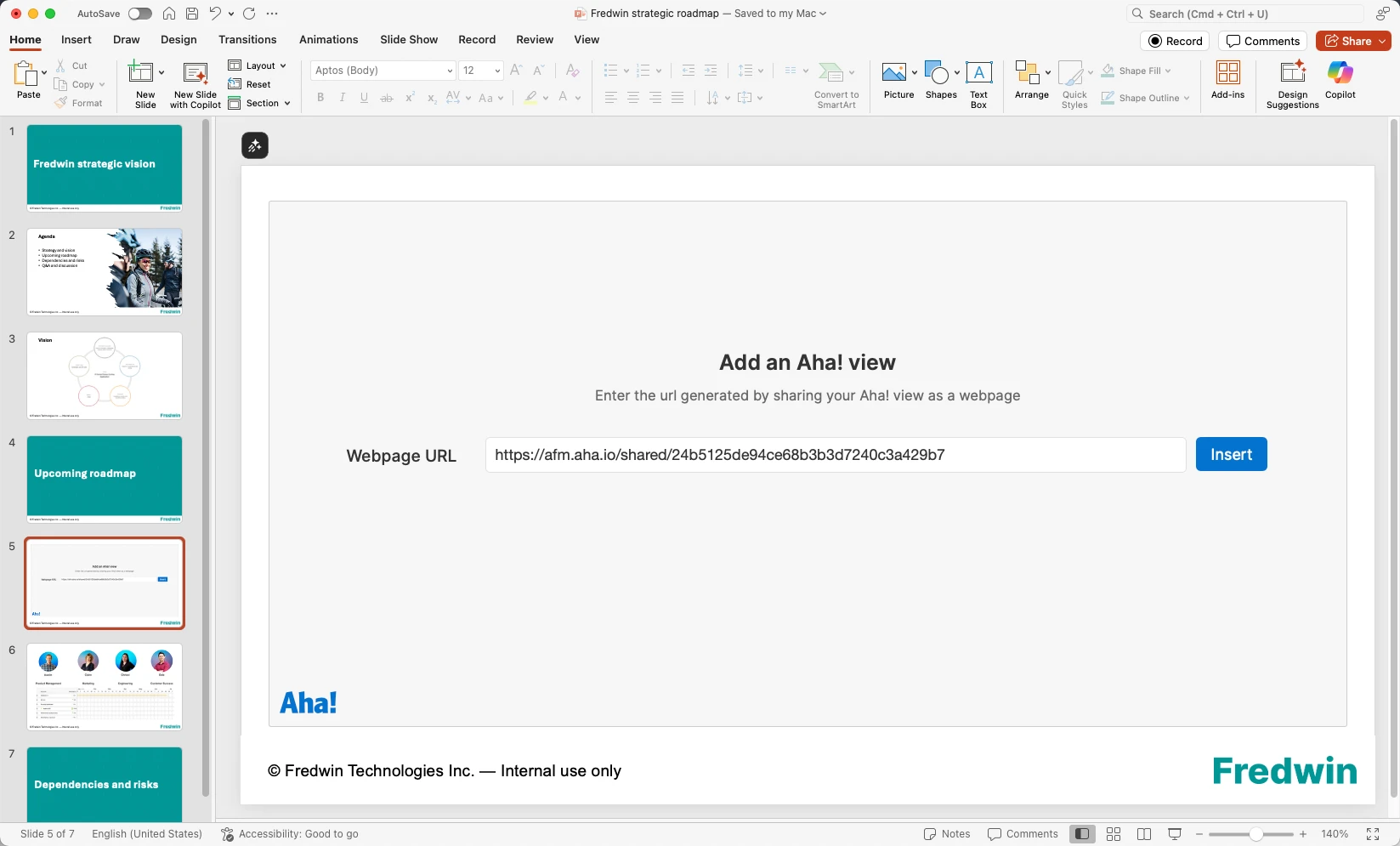
Enable Share as webpage. (You must complete this step before embedding the view.)
In PowerPoint, install the Aha! Roadmaps for PowerPoint add-in.
Authenticate using your Aha! credentials. (You will only need to do this once.)
Paste the shared view URL and click Insert.
Resize the view to fit your slide layout.
Pro tip: This update also enables you to add views from Aha! Discovery, Aha! Ideas, Aha! Whiteboards, Aha! Develop, Aha! Teamwork, and Aha! Knowledge to a PowerPoint slide.
📚 For more details, read the full support article.
Now, the way you present your roadmap is as connected as the way you plan it. Focus on refining your plans in Aha! software, knowing your PowerPoint presentations will stay up to date without extra effort.
Start a free trial of Aha! Roadmaps
Aha! Roadmaps is the best way to set strategy, prioritize features, and share visual plans. It also includes everything in Aha! Ideas Essentials, Aha! Whiteboards Essentials, and Aha! Knowledge Essentials to provide a complete product management solution. Sign up for a free 30-day trial or join a live demo to see why more than 1 million product builders trust our software to build lovable products and be happy doing it.